Your PC isn't wearing out: if it's running worse than it was a year ago, accumulated dust and software are to blame. Here's the real maintenance routine to get those FPS back.
"My PC ran better when I bought it." I've heard this a thousand times, usually followed by "it's just getting old." But no — your PC doesn't wear out like a car. An RTX 3060 Ti performs exactly the same today as the day you plugged it in. If you're getting fewer FPS than a year ago, the culprit isn't aging hardware — it's accumulated software and dust. And both are free to fix in an afternoon.
This is my actual maintenance routine, the one I follow on my own rig. Not a generic tutorial like the thousands out there: this is what I actually do, in what order, and how often. And along the way I'm going to debunk a couple of myths that keep making the rounds and accomplish absolutely nothing.
The root myth: "the PC wears out"
Let's kill this first because it's the source of almost every question on this topic. PC components don't lose performance appreciably with use. A processor or GPU from three years ago delivers the same FPS today as on day one, all else being equal. There's no "wear" quietly stealing your frames.
What DOES change over time is two things, and neither of them is silicon: accumulated software (dirty drivers, bloatware, background processes, junk temp files) and dust that chokes cooling and spikes temperatures. When people say "my PC has gotten old," 95% of the time what they actually have is a Windows install full of gunk and fans that can't breathe. Both are reversible. That's exactly what we're going to tackle.
The physical factor: dust and temperatures
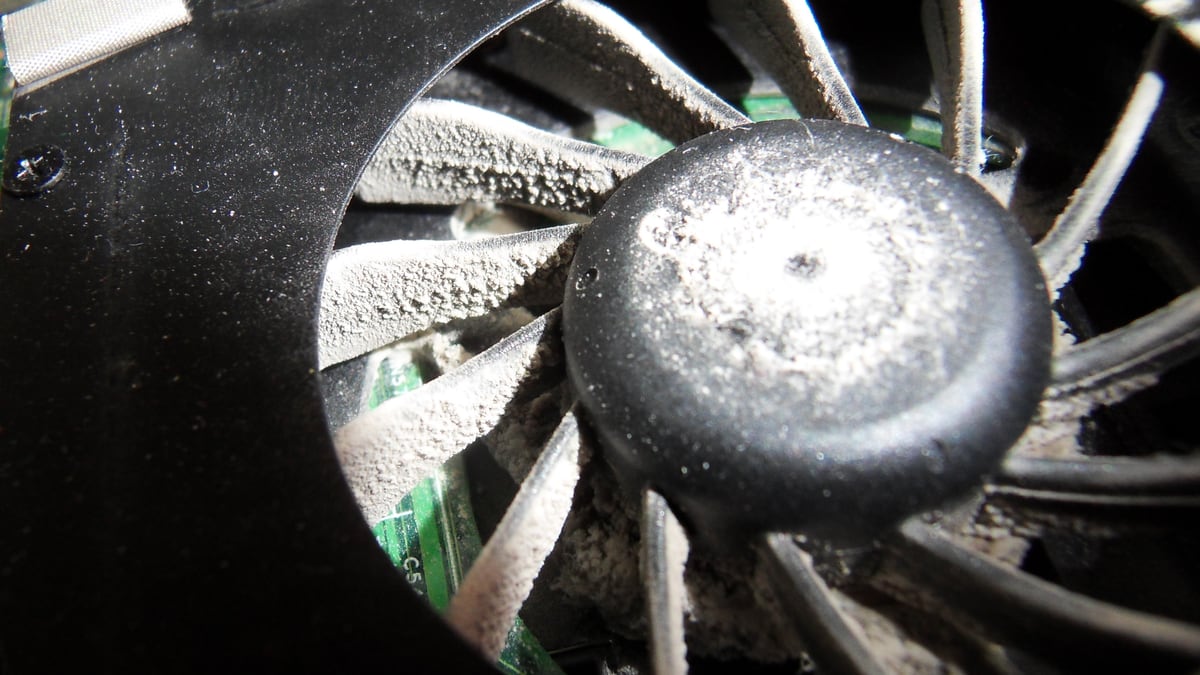
I start with the physical side because it's the most overlooked and the one that causes the biggest sudden FPS drops. Dust builds up on fans, heatsinks, and filters; airflow drops; temperatures rise; and the CPU and GPU start throttling — dropping their clocks to avoid overheating. The result: fewer FPS and more stutter, without you having touched anything.
My dust routine: clean every 3 months. Compressed air for the fans, heatsink, and hard-to-reach spots, and a lint-free microfiber cloth for surfaces. The cloth detail matters: a cloth that sheds lint leaves more mess than it cleans, right where you don't want it. I blow out the fans while holding them with a finger to keep them from spinning freely under the airflow (forcing a fan to spin can generate voltage and damage it).
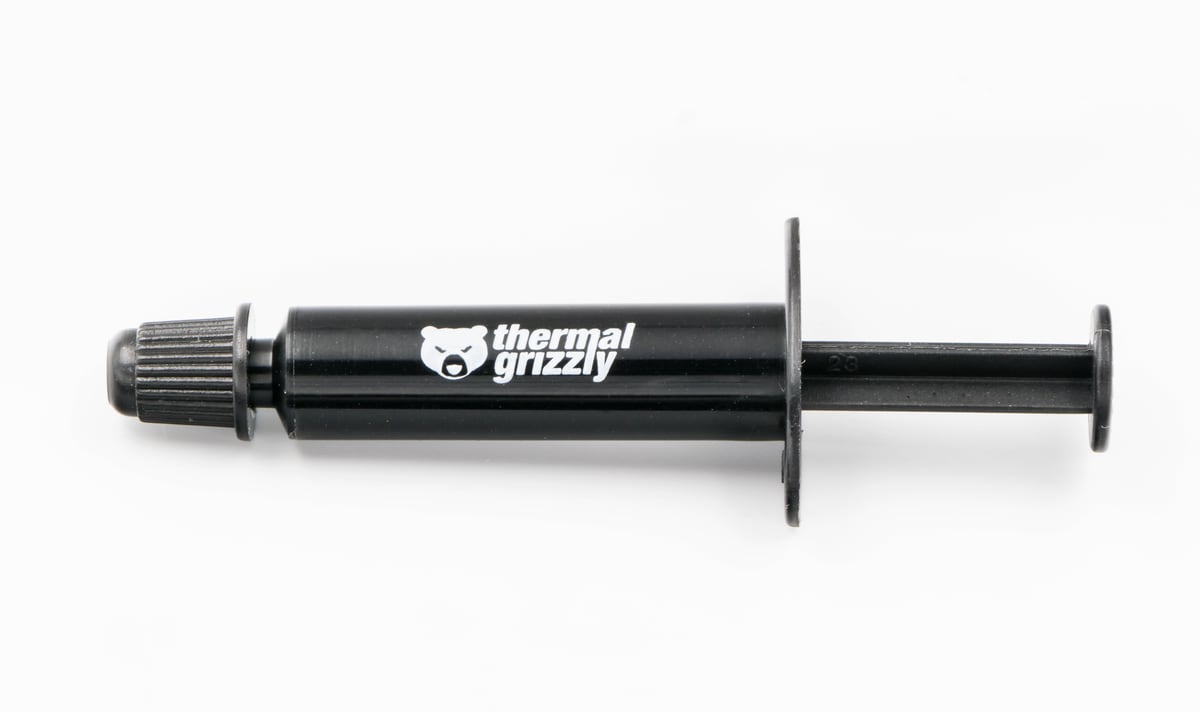
And thermal paste: I replace it every year to a year and a half. Over time it dries out and transfers heat from the CPU to the heatsink less effectively. You don't need to do it every month like you'll read online — that's overkill — but once every year or so is healthy maintenance that keeps temps in check. If you've never changed the paste and your rig is a few years old, it's probably the cheapest temperature improvement you can make.
Drivers: clean install, every time
This is where most people mess up. Installing a new graphics driver on top of the old one, over and over, leaves behind residue that causes conflicts, stutter, and random-seeming FPS drops. I cover this in detail in my NVIDIA control panel guide, but the short rule is: always do a clean install.
My routine: I install drivers manually using the clean install option (the checkbox in the NVIDIA installer itself, or DDU if I'm coming off a major change or chasing a problem). Then I load my saved profile with NVIDIA Profile Inspector, so I don't have to reconfigure everything by hand each time. Having that profile saved is what turns "reinstall drivers from scratch" from a pain into a two-minute job — and that's why I don't cut corners on doing it right.
I don't update the driver every time a new one drops. Only when there are real improvements for something I'm playing, or when I'm troubleshooting an issue. New driver doesn't equal more FPS; a stable, clean driver beats chasing the latest one.
Bloatware, startup, and background processes
This is what silently eats your resources. Over months, programs accumulate that start with Windows — overlays, launchers, and services you don't use — all fighting for RAM and CPU while you're in-game.
My routine here is aggressive but deliberate:
Startup: I disable almost everything that launches at boot (Task Manager → Startup). I only keep Discord, Spotify, and anything functionally tied to hardware (keyboard software, mic software). Everything else doesn't need to be running from second zero.
Overlays, all gone: Discord's overlay, Xbox Game Bar, launcher overlays — all of them. Overlays add overhead and are a classic source of stutter in games. I don't miss them and the frametime is better for it.
Bloatware: I use a debloat tool to strip out what Windows ships with that I don't use, including Microsoft Edge, which insists on running in the background.
One thing I have to be honest about: I also disable Windows Updates, because they run in the background and consume resources at the worst possible time. But this comes with a real security cost, as I explained in the Windows gaming playbooks guide. I do this on a dedicated gaming machine, accepting the risk with full awareness. If this is your only PC — where you do banking, shopping, and enter passwords — don't do it: leave updates enabled. The FPS you gain aren't worth running an unpatched system.
Cleaning junk and disks
Over time, temp files pile up, taking up space, and when your drive gets full the system slows down. My periodic routine:
Temp files: Windows + R, type `%temp%` and `temp`, and clear everything there. These are files the system leaves behind that it doesn't need. Direct and safe to delete.
Disk optimization: I let Windows optimize the drives (on an SSD that means TRIM, not defragmentation — don't manually defrag an SSD, it's unnecessary and wastes write cycles).
The nuclear reset: when a Windows install is too far gone after years of buildup, a clean install that keeps your files brings it back to like-new without losing your stuff. It's the nuclear option, but sometimes it's worth more than fighting a rotten system.
To be clear about expectations: cleaning temp files isn't going to give you 50 FPS. What this layer does is keep the system snappy and the drive with room to breathe. The bulk of lost FPS comes back from dealing with dust and drivers; this is the finishing touch.
The myth that actually needs debunking: msconfig and "all cores"
I see this everywhere and it needs to die. A lot of people go into `msconfig` → Boot → Advanced Options, check the "number of processors" box, and set it to the max thinking it makes Windows use all cores and boot faster. It does nothing.
Windows already uses all of your CPU's cores by default. That checkbox exists to limit the number of cores (it's for debugging and diagnostics), not to "unlock" them. If you leave it unchecked, you have all cores available — which is the correct state. Checking it and setting it to max, at best, changes absolutely nothing; at worst, if you set it wrong or leave it at a low number, you're handicapping your own system.
I bring this up because it's the perfect example of the type of "optimization trick" that circulates: it sounds technical, gives you a sense of control, and does nothing. If you're going to touch msconfig, leave that setting on automatic and forget it exists. Your time is better spent with a can of compressed air in your hand.
The maintenance protocol
If you want my routine in a nutshell, here's what I do and how often:
Every 3 months: blow out dust (compressed air + lint-free microfiber), check that nothing new has crept into startup, clear temp files (`%temp%` and `temp`), let Windows optimize the drives.
Every year / year and a half: replace thermal paste.
When needed (not on a schedule): graphics driver clean install + reload my NVIDIA Profile Inspector profile, only when there's a real improvement or I'm chasing a problem.
Once, then maintain: full debloat, overlays gone, startup trimmed down.
Nuclear option: if Windows is rotten after years, clean install while keeping files.
That order isn't random: it goes from what recovers the most FPS (dust, drivers) to the finishing touches (temp files, disks). If you only have an afternoon, start at the top.
Conclusion
Your PC hasn't gotten old in a year. If it's performing worse, it's dust and software, and both are free to fix. Blow out the gunk, keep temps in check with fresh paste, install drivers clean, kill the bloatware and overlays, and clear the junk every few months. That gets back the FPS you thought you'd lost to "wear."
And be skeptical of tricks that sound magical: the msconfig cores thing does nothing, same as half the "secret settings" you'll see in FPS boost videos. Real maintenance is boring, manual, and free — but it works. Once you've got it clean inside, the next step is dialing in your in-game settings: that's where my CS2 graphics settings guide comes in, to squeeze out everything your rig already has to give.
Frequently Asked Questions
Why does my PC have fewer FPS than when I bought it?
Components don't lose performance appreciably with use; a GPU from three years ago delivers the same FPS today as on day one. What changes over time is two things: accumulated software (dirty drivers, bloatware, background processes) and dust that chokes cooling and spikes temperatures. Both are reversible.
How often should I replace the thermal paste on my PC?
The guide recommends every year to a year and a half. Over time the paste dries out and transfers heat from the CPU to the heatsink less effectively. You don't need to do it every month — that's overkill — but if your rig is several years old and you've never changed it, it's probably the cheapest temperature improvement you can make.
Does the msconfig cores trick actually give you more FPS?
No. Windows already uses all of the CPU's cores by default; that checkbox exists to limit the number of cores for diagnostic purposes, not to unlock them. Checking it and setting it to the maximum, at best, changes absolutely nothing; at worst, if configured incorrectly, it caps your system's performance.
Do Discord or Xbox Game Bar overlays affect in-game performance?
Yes. Overlays add overhead and are a classic source of stutter in games. The guide recommends removing all of them: Discord's overlay, Xbox Game Bar, and launcher overlays. Frametime improves and you won't miss them during a match.